xPlora: Siren
Introduction
Wee-woo, wee-woo! Have you ever heard that loud “wee-woo” sound when you’re walking on the road or riding in a car? That’s a siren, and it means something very important is happening!
When a police car sees someone breaking the law, it turns on its siren and flashing lights to say, “Hey everyone, please move aside!”
An ambulance uses its siren to rush to people who are hurt or very sick. Its “wee-woo” tells us, “Make way someone needs help right now!”
Fire trucks drive quickly to put out fires or help people in danger. Their siren warns us, “Alert! Firefighters are coming to save the day!”
And that’s why they are super loud, so everyone can hear them from far away, even with traffic, music, and busy streets.
Now that you know what a siren does, are you ready to build one yourself?
Build the project
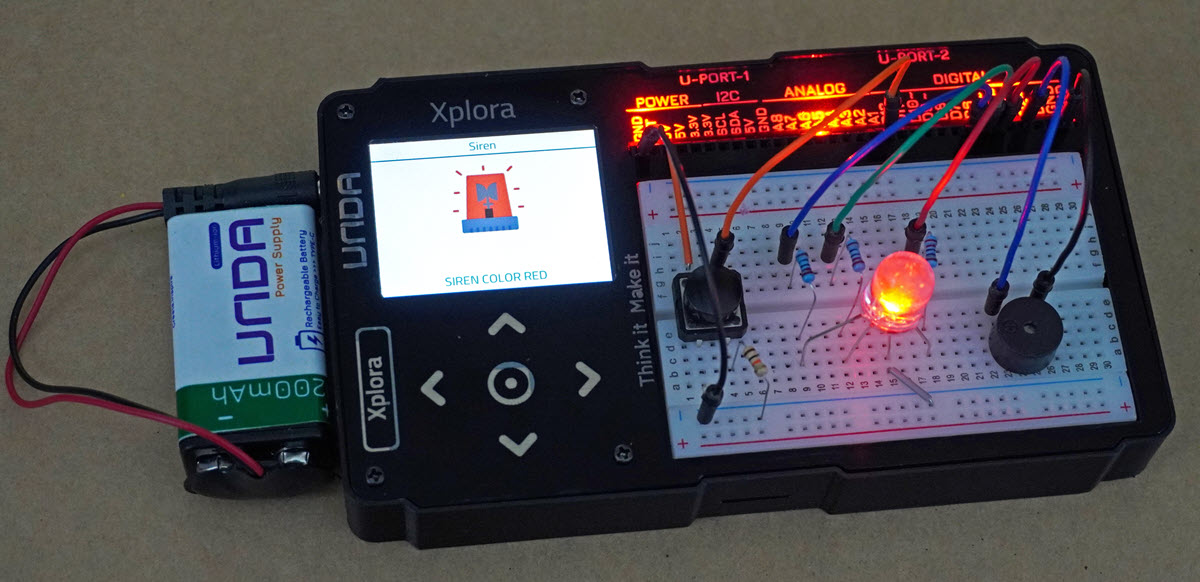
In this section we are going to build the flashing light circuit on the UNDA.Xplora breadboard.
Components
To build the Siren Project you will need:
| Component | Description |
|---|---|
| 1 x RGB LED | 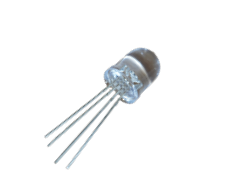 |
| 1 x buzzer | 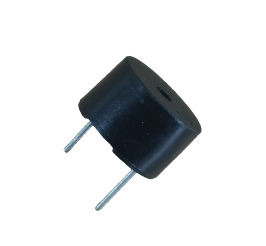 |
| 1 x pushbutton | 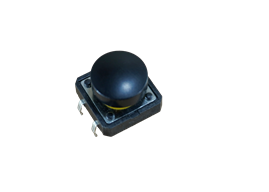 |
| 3 x resistor (220 ohm) | 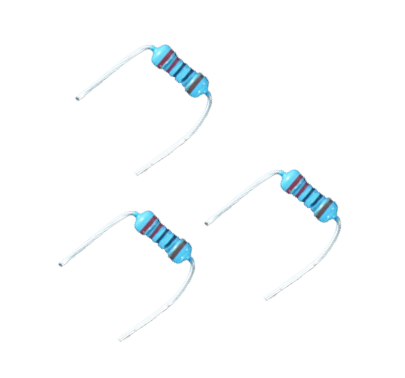 |
| 1 x resistor (10 Kilo-ohm) | 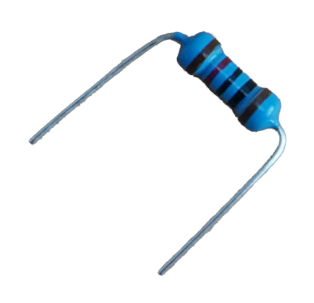 |
| 2 x breadboarding jumper wire | 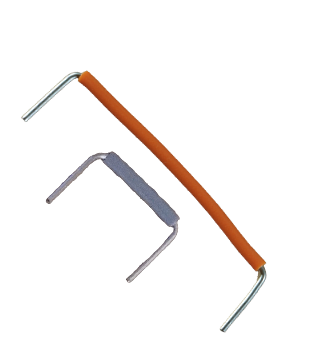 |
| 7 x jumper wire | 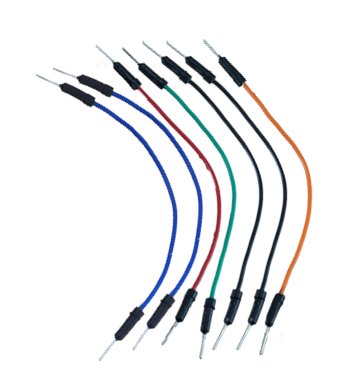 |
| 1 x battery connector | 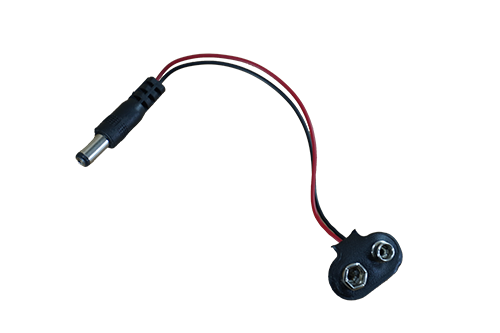 |
| 1 x battery | 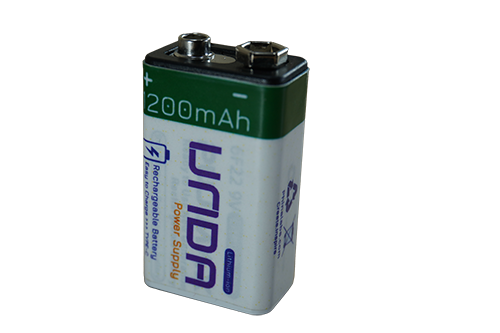 |
| 1 x Unda Xplora | 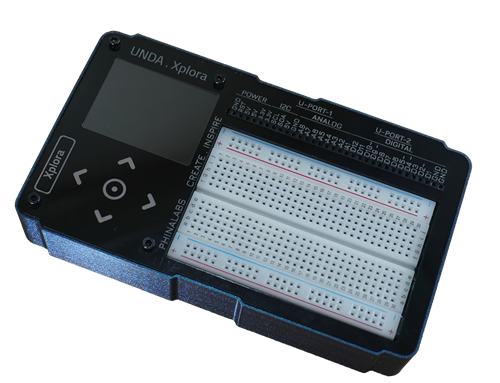 |
Step 1
Connecting the Buzzer
- Step
- Build
-
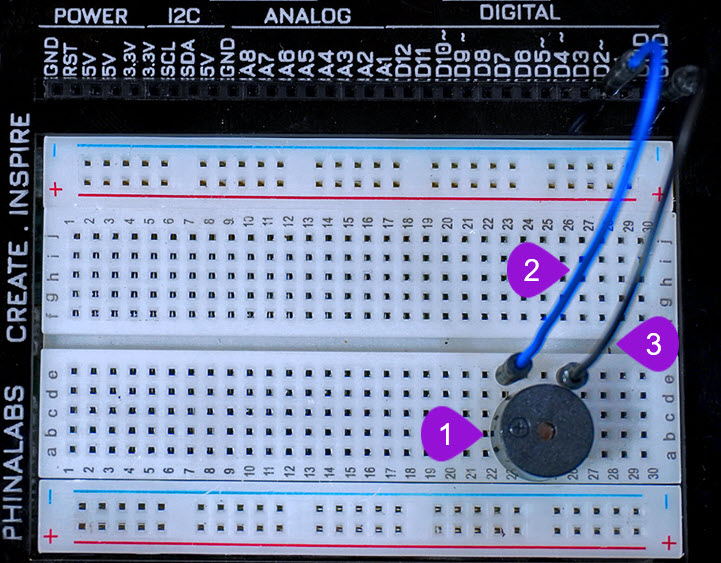
Placing the buzzer on the breadboard: Take the buzzer from the kit. Take note of the positive and negative leg: The positive leg is longer leg and it has been been labelled with a plus sign (+). The negative pin of the buzzer is the leg with the shortest length. Insert the positive leg of the buzzer into pin b23 of the breadboard and insert the negative leg of the buzzer into pin b26 of the breadboard.
-
Connecting the buzzer to digital pin: Using a jumper wire, plug one end of the jumper wire into digital pin D2 and then plug the other end of the wire into pin e23 of the breadboard next to the positive pin of the buzzer.
-
Connecting the buzzer to GND: Using another jumper wire from your kit, plug one pin of the jumper wire into any GNDpin of the UNDA.Xplora. Insert the other pin of the jumper wire into pin e26 of the breadboard next to the negative pin of the buzzer.
Step 2
Connecting the RGB LED on the breadboard
- Step
- Build
-
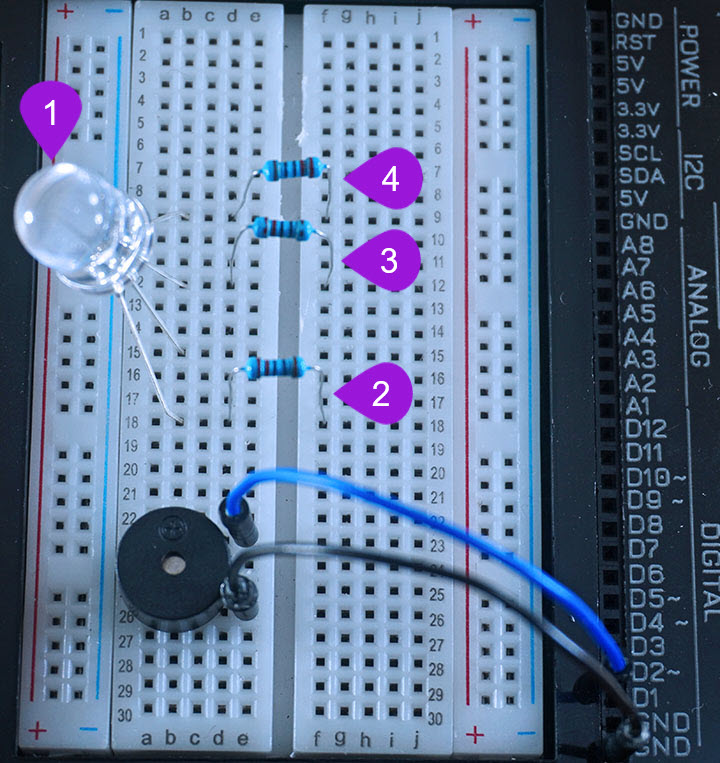
Placing the RGB LED on the breadboard: Take the RGB LED from your components casing kit. Recall that the RGB LED has four pins and that the longest leg of the RGB LED is the negative pin and it is the second pin. Plug the four pins as follows; insert pin one (RED PIN) into pin b18 of the breadboard and then insert the negative pin into pin b15 of the breadboard. Insert the third pin (GREEN PIN) into pin b12 of the breadboard and finally insert the fourth pin (BLUE PIN) into pin b9 of the breadboard.
-
Connecting Resistor 1: Take one 220 ohm resistor from the components casing. Plug one leg of the resistor next to the first pin (the red pin) of the RGB LED at pin d18 of the breadboard. Insert the other leg of the resistor into the breadboard pin f18.
-
Connecting Resistor 2: Take another 220 ohm resistor from the components casing. Plug one leg of the resistor next to the third pin (the green pin) of the RGB LED at pin d15 of the breadboard. Insert the other leg of the resistor into the breadboard pin f15.
-
Connecting Resistor 3: Take a third 220 ohm resistor from the components casing. Plug one leg of the resistor next to the fourth pin (the blue pin) of the RGB LED at pin d9 of the breadboard. Insert the other leg of the resistor into the breadboard pin f9.
Step 3
Connecting the RGB LED pins to digital pins
- Step
- Build
-
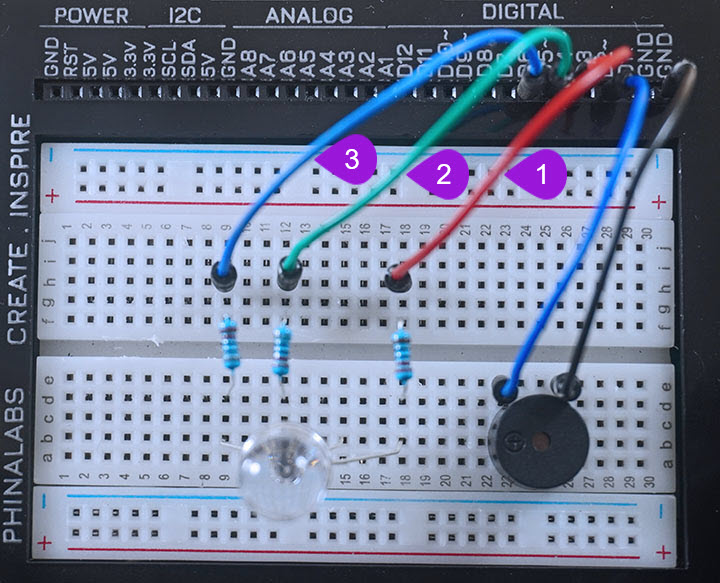
Connecting the first RGB Pin to D4: Take one jumper wire of any colour of your preference from the kit and insert one leg of the jumper wire into pin D4 of the kit. Insert the other leg of the jumper wire into the breadboard pin h18 next to the first pin of the RGB LED.
-
Connecting the third RGB Pin to D5: Take another jumper wire with any colour of your preference from the kit and insert one leg of the jumper wire into pin D5 of the kit. Insert the other leg of the jumper wire into the breadboard pin h12 next to the third pin of the RGB LED.
-
Connecting the fourth RGB Pin to D6: Take a third jumper wire of any colour your preference from the kit and insert one leg of the jumper wire into pin D6 of the kit. Insert the other leg of the jumper wire into the breadboard pin h9 next to the fourth pin of the RGB LED.
Step 4
Connecting the Pushbutton on the Breadboard
- Step
- Build
-
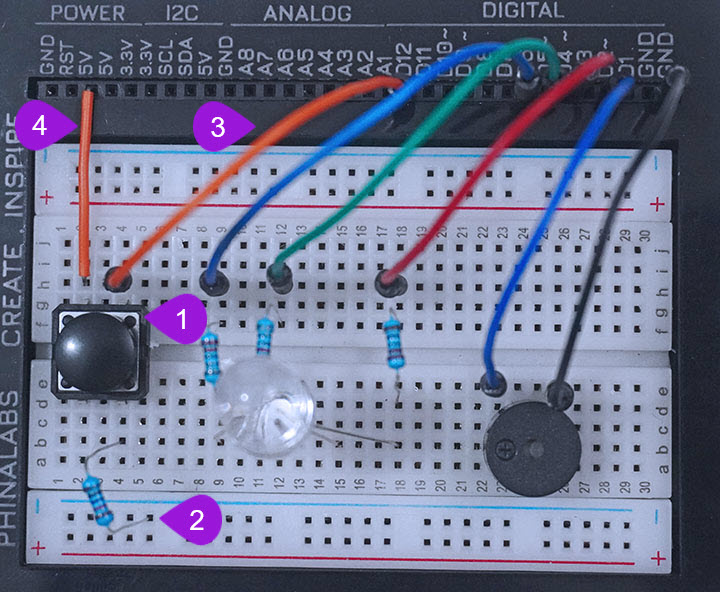
Placing the pushbutton on the breadboard: Take one pushbutton from the kit. Connect the two top pins of the pushbutton itto pins g2 and g4 of the breadboard. Now then connect the other two pins of the pushbutton at pins d2 and d4 of the breadboard. This project uses the black pushbutton but you can always use any other colored pushbutton of your choice. Also, if the two top pins are correctly connected, the two bottom pins will be automatically plugged into ther respecitive pins (pins d2 and d4).
-
Connecting a 1O Kilo-ohm resistor: Pick one 10 Kilo-ohm resistor from the components casing. Plug one of the resistor's leg into any pin of the bottom breadboard negative rail and the plug the other end into pin b8 next to the bottom leg of the pushbutton.
-
Connecting the pushbutton to D12: Pick a jumper wire of any color from the kit and then plug one end of the jumper wire into digital pin d12. Insert the other end of the jumper wire into the breadboard pin h4 next to the pushbutton.
-
Connecting the pushbutton to 5V Power: Using a bradboaridng jumpe wire, plug one leg of the wire into any 5V pin of the UNDA.Xplora. Plug the other end into breadboard pin h2 next to one of the top pins of the pushbutton. It is recommended you use a longer-sized breadboarding jumper wire so as to make it easy to connect the button to power.
Step 5
Connecting to GND (Ground)
- Step
- Build
-
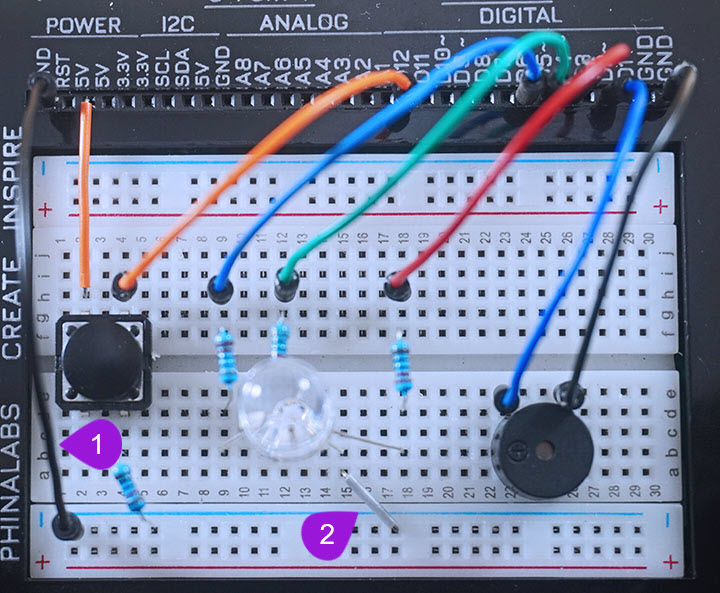
Connecting the GND Pin: Take another jumper wire from the kit and plug one end of the jumper wire into any GND pin of the kit. Plug the other leg of the jumper wire into any pin of the bottom negative breadboard rail (it is marked with a blue-coloured line).
-
Connecting GND to the negative pin of the LED: Take a breadboarding jumper wire (preferably one with a small length) and plug one of it's leads into any negative pin of the bottom breadboard negative rail. Insert the other end of the wire into pin a15 of the breadboard next to the negative pin of the RGB LED.
Run the Project
Once you are done building the project, connect the battery to the the battery connector and then plug it to the power port of your Unda Xplora to power it on.
Follow the steps below to load up the Siren Project.
Open Project
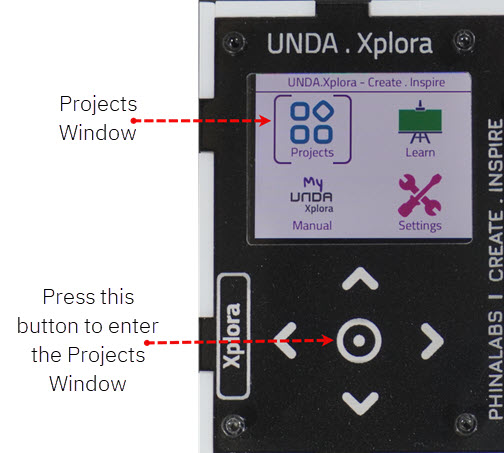
From the main window open the projects