xPlora: Getting Started
Introduction
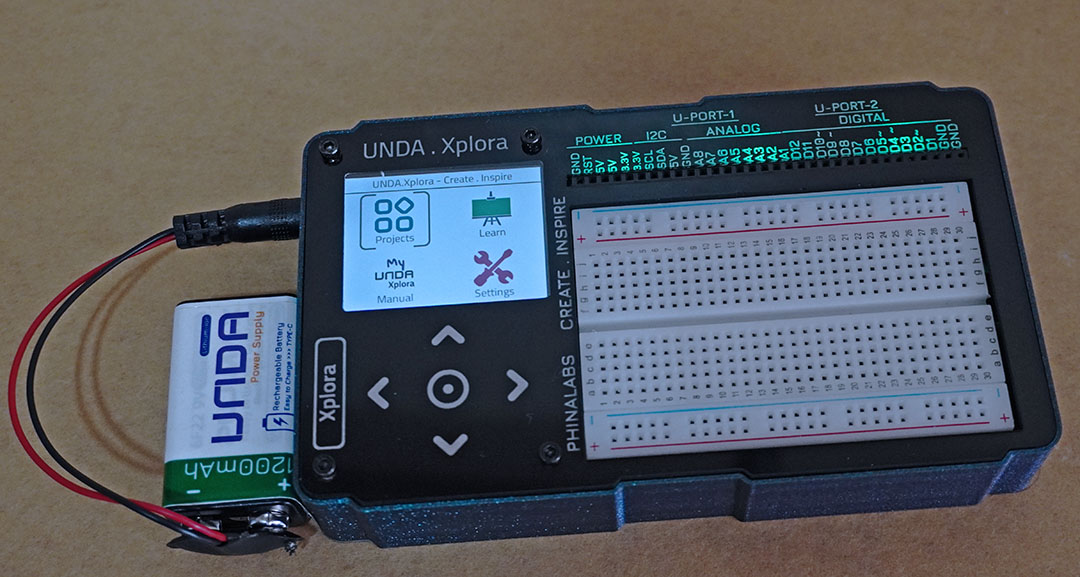
Unda.Xplora is a small portable computer for learning STEM, i.e physical computing and digital electronics.
The kit comes with 10+ inbuilt projects as well the capability to download more projects which are carefully evaluated and designed by our inhouse STEM creative team. The Kit projects can hold more than 100 projects therefore creating limitless innovation and creativity.
Unda Xplora is available in two options:
- Starter Pack: This option includes the Unda Xplora kit along with free components -LEDS, jumper wires, pushbuttons,breadboarding jumper wires, resistors and buzzer- that enable the user to comfortably build the first ten projects.
- Tinker Toolbox Pack: This option includes everything in the Starter Pack, plus a custom designed components case that can that also stores additional components like potentiometer, LDR, temperature sensor, DC and Servo motors, more pushbuttons and LEDS. These components allow the user to comfortably work through more advanced projects.
Its' built for students, teachers, parents and makers of all ages and the the step by step documentation makes it easier the learning curve easier.
The kit also come with inbuilt manuals, learning content and project build instructions that enables making easier incase a computer or a smartphone is not available.
Overview
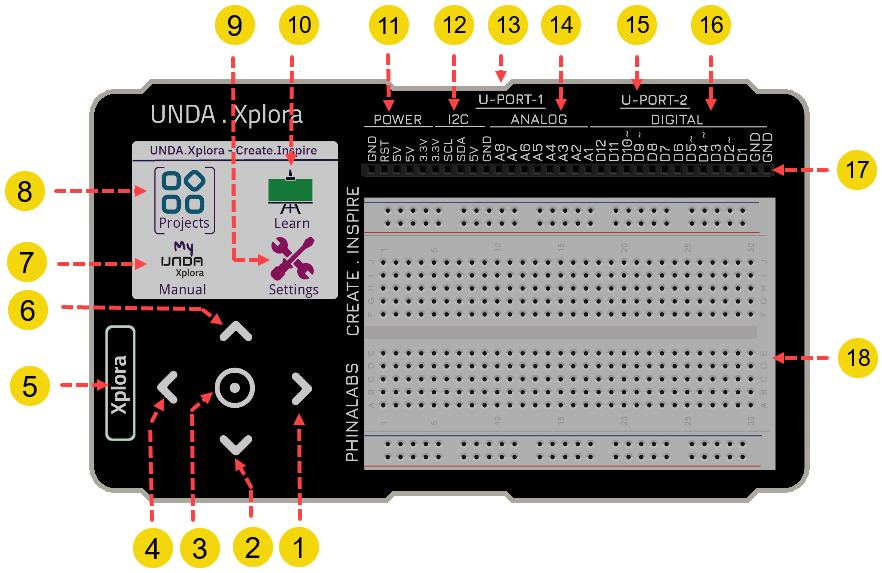
Unda Xplora consists of the following parts;
- Main Display
- Touch navigation panel
- Digital Ports
- BreadBoard
Navigation
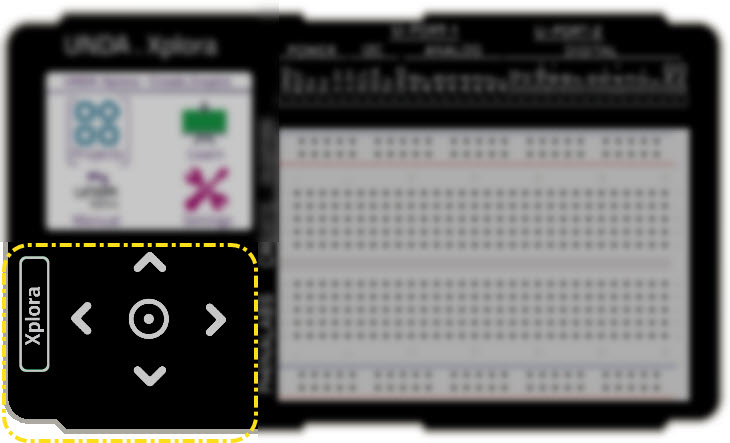
These section is made up of 6 different buttons, with each having a specific function making it easier to interact with the kit.
| Feature | Image | Type | Description |
|---|---|---|---|
| 1 |  | Left Navigation Key | This key is used to go back to the previous options. It is also used to move to the previous page in the Projects Window |
| 2 |  | Down Navigation Key | It is used to scroll down through a list of options |
| 3 |  | Center Navigation Key | This button is used to select and open options or selections |
| 4 |  | Right Navigation Key | Used to move to the next option. It is also used to move to the next page in the Projects Window |
| 5 |  | Xplora Navigation Key. | Used a Back and Home button |
| 6 |  | Up Navigation Key. | It is used to scroll up through a list of options |
Display
The Display Section serves as an avenue to view the information contained within the kit. It shows the menu; with each menu icon having different purpose as explained below.
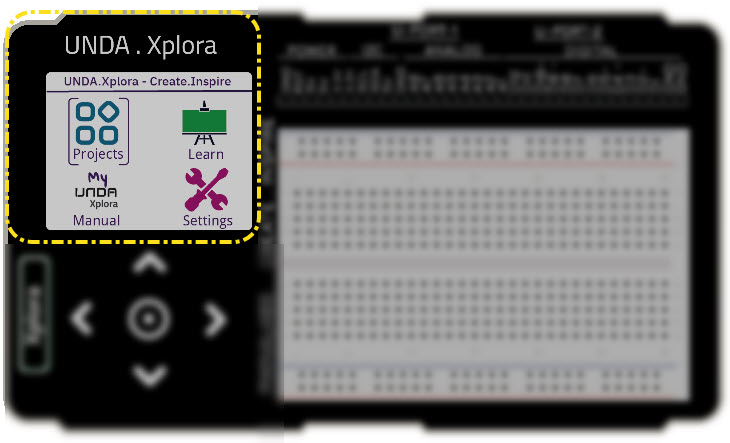
| Feature | Image | Type | Description |
|---|---|---|---|
| 7 |  | Manual | Open inbuilt offline Manual |
| 8 |  | Projects | Open inbuilt Projects |
| 9 |  | Settings | Open Settings; mute sound, change theme color, reset kit etc |
| 10 |  | Learn | Offline extra learning content for digital electronics |
Breadboarding
This is the main area where one can build circuits using various components. It consists of a breadboard and different ports that each serve a different purpose to help the user build circuits.
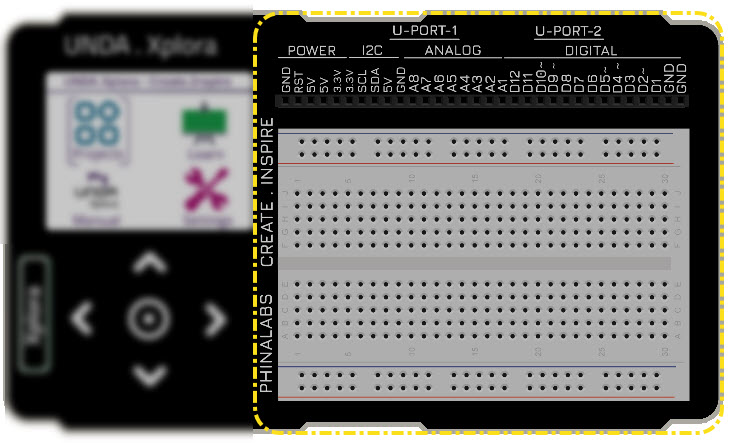
| Feature | Image | Type | Description |
|---|---|---|---|
| 11 |  | Power Ports | Provide output power supplies for breadboarding; 5V, 3.3V and Ground |
| 12 |  | Communication | Provides a port to connect to external modules and sensors |
| 13 |  | U-Port-1 | A port to connect to Unda.Snap modules |
| 14 |  | Analog Port | Port for connecting analog components e.g variable resistor, temperature sensor etc |
| 15 |  | U-Port-2 | A port to connect to Unda.Snap modules |
| 16 |  | Digital Port | Ports provide digital input and output: D1-D12 are digital in-out ports |
| 17 |  | Breadboarding Port | A Collection of 32 ports; Power, Digital, Analog, and Communication |
| 18 | 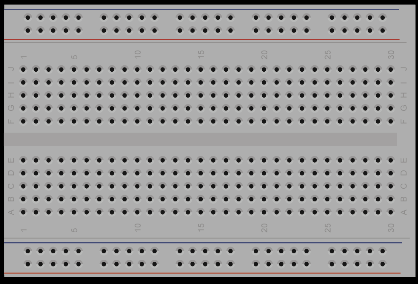 | Breadboard | An easy to work platform to make wiring components easier and fun |
Ports
Power and Communication
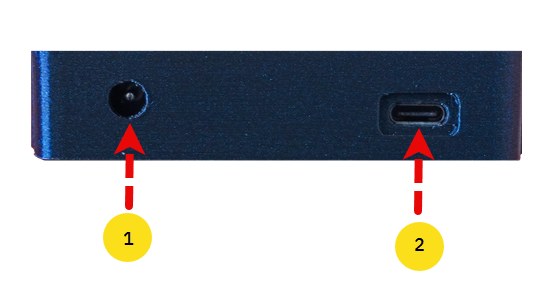
This ports make it easier to power up your Unda Xplora. The communication port can also be used to conenct to various devices such as mobile phones and laptops.
| Feature | Type | Description |
|---|---|---|
| 1 | Power Jack Connector | This port is used to connect to the battery connector inorder to power on the kit |
| 2 | Firmware Update Port | It is used to connect a USB-B Cable that can be used to update the firmware of the Kit. It also acts as a serial communication port to connect to devices. |
Unda.Snap Ports
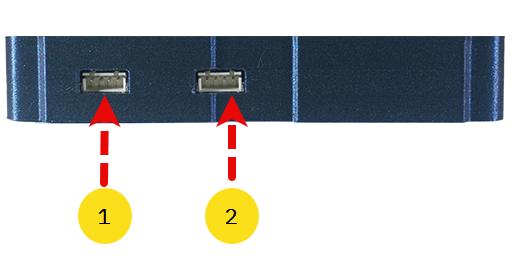
The kit includes two Unda.Snap Ports, specially designed to easily connect with our custom-made sensors and modules—called Snap Sensors. These ports make it simple to expand your projects without complicated wiring.
| Feature | Type | Description |
|---|---|---|
| 1 | U-Port-1 Connector | This port is used to connect to Unda.Snap Modules |
| 2 | U-Port-1 Connector | This port is used to connect to Unda.Snap Modules |
Storage Media Slot
| Feature | Type | Description |
|---|---|---|
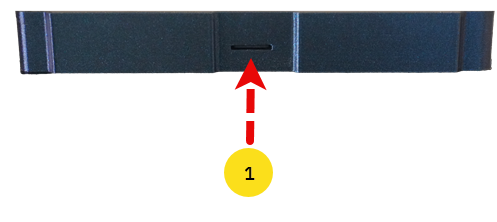
| 1 | Memory Card Slot | This slot can be used to eject the storage media used to store the Kit's data |
Components Overview
Starter Pack
The starter pack for Unda Xplora comes with basic components to enable the user complete the first 10 Projects. You can always purchase the Booster Pack which contains additional components found in the Tinker Toolbox Pack.
The starter pack components include the following:
LEDS
Seven types of LEDs(Light Emitting Diode) are packed.
- 1 x 5mm different single-Colored LEDs (there are 5 different colors)
- 1 x 10mm White-colored LED
- 1 x RGB LED
Green LED
Emits green light when powered.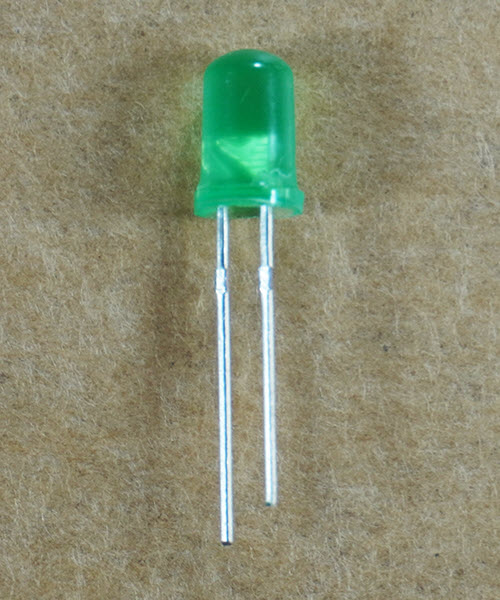
Buttons
The Starter Pack also comes with two pushbuttons are packed. A pushbutton is a switch that when pressed, it returns to its original position as soon as you release it.
- 1x Green Pushbutton
- 1x Black Pushbutton
Green Pushbutton
A pushbutton with a green coloured cap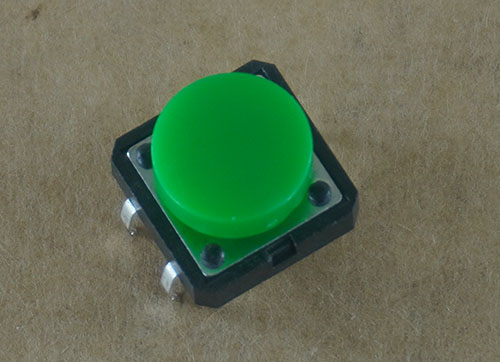
Actuators
There is one actutator packed in this option. Actuators are devices that produce motion or action.
- 1x Buzzer
Buzzer
A buzzer has a vibrating coil that when powered it can produce different sounds or tones and can be used to make sound alerts or music.
Connecting Wires
The re are connecting wires packed with the kit that make circuit connection easy. These wires are used to connect one point or a component to another on the breadboard when building circuits.
- 8x Male-Male Jumper Wires
- Assorted Breadboarding Jumper Wires
Male to Male Jumper Wires
These jumper wires are used for connecting components to the breadboarding ports.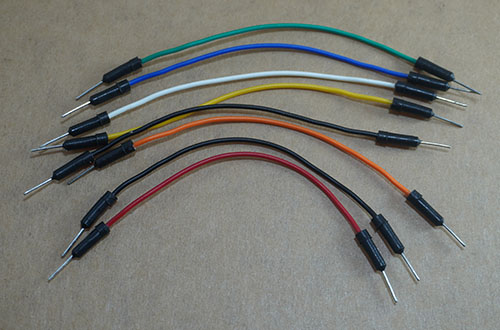
Resistors
Two types of Resistors are packed. The resistors are electronic components that limits current flow.
- 10x 220Ω resistors
- 10x 10KΩ (10 Kilo-ohm) resistors
220Ω Resistor
Provides a resitance of 220 Ohms. It's used to limit current when powering LEDs or other low current components.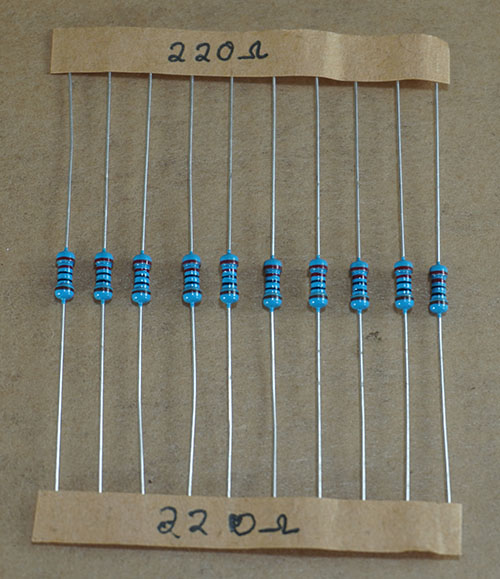
Power
The kit needs to be powered on and this can be achieved using:
- 1x 9V Rechargeable Battery
- 1x Connector for the battery
Rechargeable Battery
9V Battery to power the kit making it possible to use make your circuits and learn in the absence of mains electricity.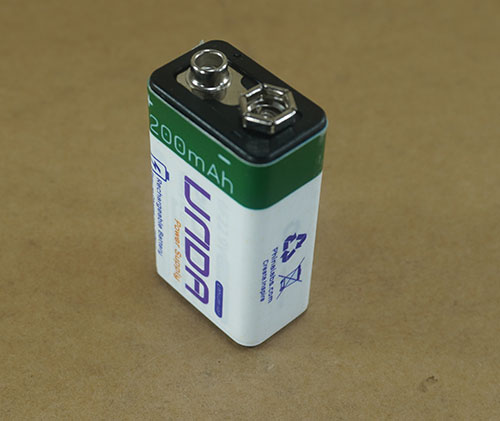
Tinker Toolbox Pack
The Tinker Toolbox pack for Unda Xplora comes with components that are an expanded vesion of the Starter Pack. The components are stored in a custom-designed components box making setup and storage simple and efficient.
LEDS
Seven types of LEDs(Light Emitting Diode) are packed.
- 3 x 5mm different single-Colored LEDs
- 1 x 10mm White-colored LED
- 1 x RGB LED
Green LEDs
Emits green light when powered.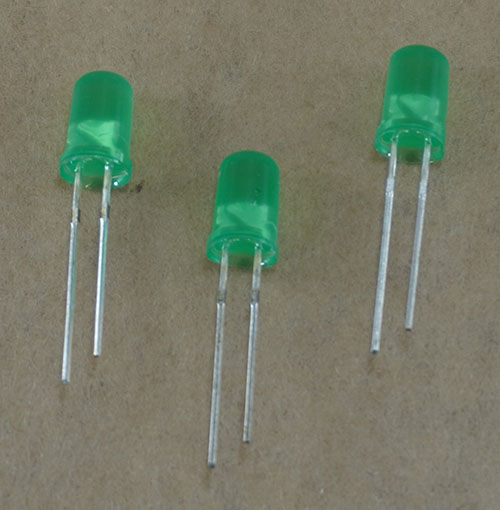
Buttons
Pushbuttons are packed. A pushbutton is a switch that when pressed, it returns to its original position as soon as you release it.
- 1x Green Pushbutton
- 1x Blue Pushbutton
- 1x White Pushbutton
- 1x Black Pushbutton
Green Pushbutton
A pushbutton with a green coloured capActuators
Three types of actutators are packed. Actuators are devices that produce motion or action.
- 1x DC Motor
- 1x Servo Motor
- 1x Buzzer
DC Motor
A DC Motor rotates when powered on. A small fan is also attached at the top of the shaft.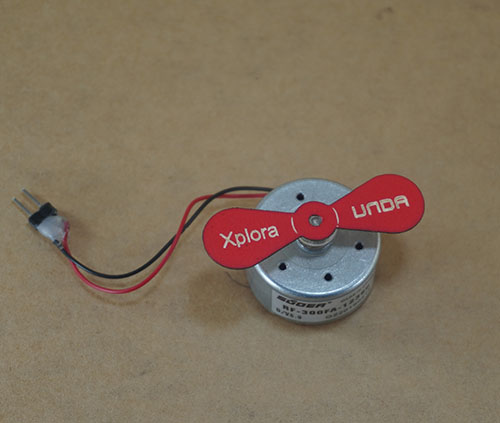
Connecting Wires
Wires are packed with the kit. These wires are used to connect one point or a component to another on the breadboard when building circuits.
- 8x Male-Male Jumper Wires
- 10x Male-Female Jumper Wires
- Assorted Breadboarding Jumper Wires
Male to Male Jumper Wires
These jumper wires are used for connecting components to the breadboarding ports.Resistors
Three types of Resistors are packed. The resistors are electronic components that limits current flow.
- 10x 220Ω resistors
- 10x 10KΩ (10 Kilo-ohm) resistors
- 1x Potentiometer (This is a variable resistor)
220Ω Resistor
Provides a resitance of 220 Ohms. It's used to limit current when powering LEDs or other low current components.Sensors
The following sensors are packed:
- 1x Temperature Sensor
- 1x Light Sensor
Temperature Sensor
Senses the ambient temperature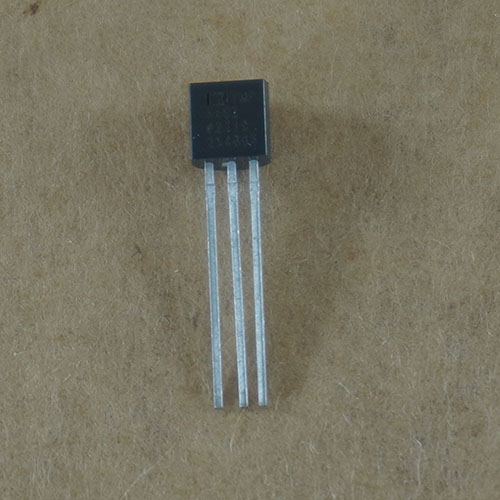
Power
The kit needs to be powered on and this can be achieved using:
- 1x 9V Rechargeable Battery
- 1x Connector for the battery
- 1x USB Cable to charge the battery
Rechargeable Battery
9V Battery to power the kit making it possible to use make your circuits and learn in the absence of mains electricity.Breadboard Basics
The breadboard is a board with holes called terminal pins that allows a user to build and test circuits without the need of soldering components. The holes allows the user to easily insert electronic components when building circuits.
The breadboard has 5 sections:
- 2 X Power Rail Section
- 2 X Circuit Building Section
- 1 X DIP Support
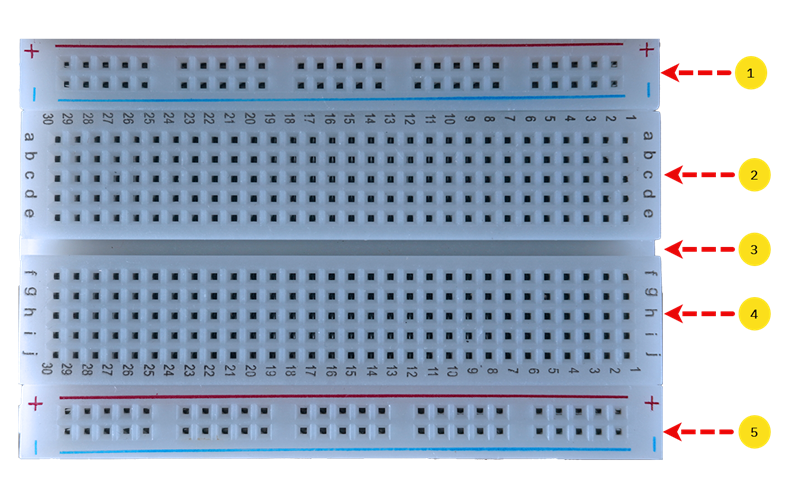
| Feature | Type | Description |
|---|---|---|
| 1 | Top Power Rail Section | This section has a positive terminal marked by red and negative terminal marked by blue color. |
| 2 | Top Circuit Building Section | This section has terminal strips that allow the user to plug in electronic components |
| 3 | DIP Support | This section is a slot running through the breadboard to separate the two circuit building sections of the breadboard |
| 4 | Bottom Circuit Building Section | This section has terminal strips that allow the user to plug in electronic components |
| 5 | Bottom Power Rail Section | This section has a positive terminal marked by red and negative terminal marked by blue color. |
Power Rail Section
As mentioned above the breadboard has two power rail section and they each have a positive terminal rail and a negative terminal rails.
The positive terminal rail is marked with a red colour while the negative terminal is usually indicated using blue colour.
If you want to connect 5v or 3.3V power on the breadbord, you plug one end of the jumper wire to any pin of the positive breaboard rail and the other end of the jumper wire is connected to either any 5V pin or 3.3V pin of the kit.
What does this do?
This means that the breadboard has been supplied with either 5V of power or 3.3V.
The same can be done to connect ground to the breadboard; you plug one end of your jumper wire to any pin of the negative breadboard terminal pin and the other end of the jumper to any GND pin of the kit.
Power Rail Continuity
It is also worth noting that both the positive breadboard rail and negative breadboard rail have horizontal continuity.
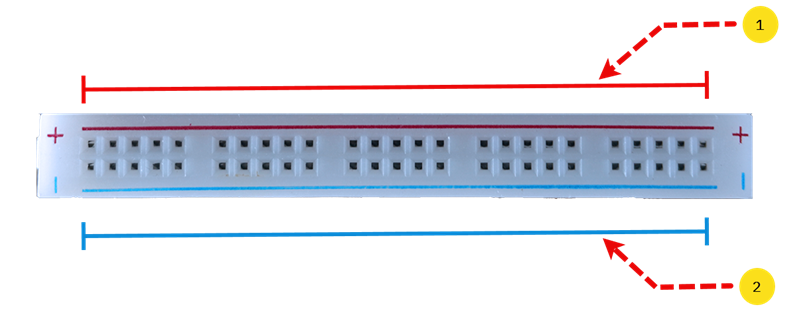
| Feature | Type | Description |
|---|---|---|
| 1 | Positive Breadboard Rail | It has 25 pins that are electrically connected and thus it has horizontal continuity |
| 2 | Negative Breadboard Rail | It has 25 pins that are electrically connected and thus it has horizontal continuity |
What does horizontal continuity mean?
Horizontal continuity means that the pins in each horizontal row of the breadboard are connected to each other. Therefore, when you connect the breadboard's positive rail to either 5V or 3.3V, any pin in that row on the positive rail will be connected to either 5V or 3.3v as well. This also means that you can connect components anywhere along that row and they'll all share the same 5V connection.
The same also applies to any GND connection; When you connect the breadboard's negative rail to Ground (GND), any pin in that row on the negative rail will be connected to GND as well
Circuit Building Section
The breadboard comes with two sections used to place components inorder to build and test circuits without the need of soldering. This sections are separated using a groove that is called a DIP Support.
Each section has a total of 150 pins i.e there are 5 rows with 30 pins on each row. The rows and columns are marked differently to make breadboarding easy.
These marking make it easier to connect components on the breadboard and also help you manage and organize your components on the breadboard.
-
The vertical markings represents the columns and they are represented numbers from 1 to 30 which means that verticallyzontally there are 30 columns.
-
The horizontal markings represents the rows and they are represented using letters, with the top section having letters a through to e and the bottom section, letters f through to j. This means that horizontally there 5 rows.
Circuit Building Section Continuity
The circuit build section, has no horizintal continuity but it has there vertical continuity.
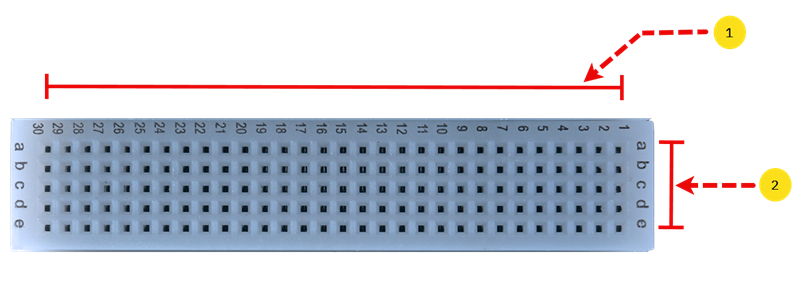
| Feature | Type | Description |
|---|---|---|
| 1 | Row Pins | There are 5 rows with each having 30 pins that are not connected to each other and thus there is no horizontal continuity |
| 2 | Column Pins | There are 30 columns with each having 5 pins that are connected to each other and thus there is vertical continuity |
What does vertical continuity mean?
Vertical continuity means that the pins in each vertical column of the breadboard are connected to each other. Therefore when you connect any electronic component to any pin in that column, it will be connected to all the other pins in that same column and they share an electrical connection. Any component connected alomng the column shares the same connections as other components on the column.
However, the circuit building section has no horizontal continuity.
This means that inorder to connect pins in a row for example on row a, pin 30 and pin 29 are not electricaally connected and in order to establish a connection have one has to use breadboarding jumper wires.
Building your first Project.
In this section, we will proceed to build the first project-Flashing Light